

If you spend any time around software, websites, or apps, you will hear the word GitHub again and again. Developers talk about it. Job posts ask for it. Students are told to “put your project on GitHub.” But if you are new, the word can feel strange. What is GitHub, really? Is it a tool, a website, or a social network?
The short answer is this: GitHub is a website where people store, share, and work on code together. But that short answer hides a lot. Today GitHub is also a place to plan work, test code, find bugs, publish websites, and even get help from artificial intelligence.
In this guide, I will explain GitHub in plain and simple words. You do not need to be a programmer to follow along. By the end, you will know what GitHub is, how it works, which words you need to learn, and how to make your first project step by step.
What Is GitHub?
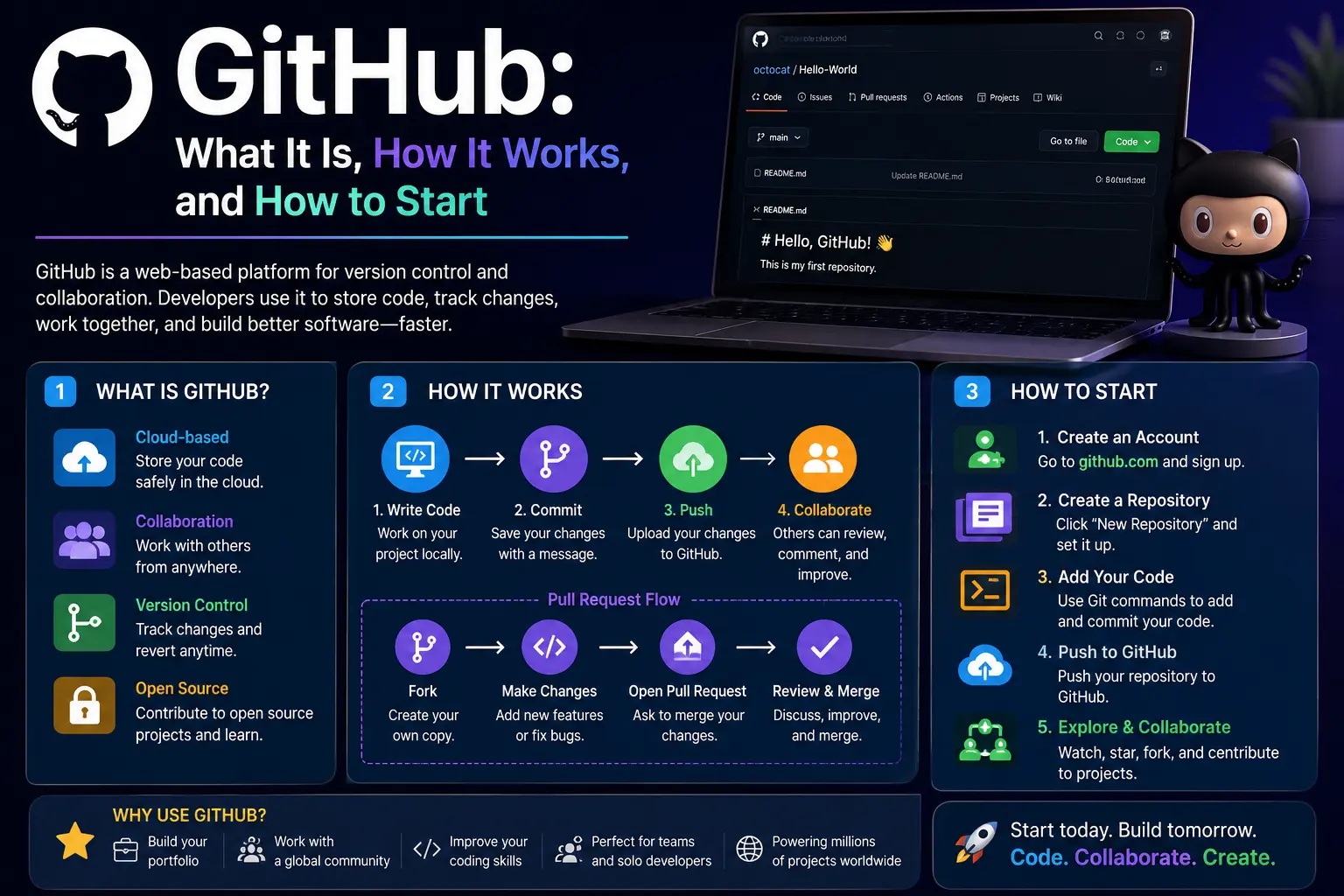
GitHub is an online platform for storing and managing code. Think of it like Google Drive, but made for programmers. In Google Drive, you save documents, and you can share them with friends. On GitHub, you save code projects, and you can share them with a team or with the whole world.
But GitHub does much more than save files. It keeps a full history of every change. If you make a mistake today, you can go back to how the project looked last week. If five people work on the same project, GitHub helps them avoid stepping on each other’s toes.
GitHub is now one of the biggest places for software work in the world. Some training providers say it has more than 100 million users. Microsoft bought GitHub in 2018, and since then the site has kept adding new tools, such as GitHub Copilot, Codespaces, and GitHub Actions.
Here is a simple way to remember it:
- GitHub is a home for your code.
- GitHub is a meeting place for your team.
- GitHub is a notebook that remembers every change.
Git vs. GitHub: What Is the Difference?
Many beginners mix up Git and GitHub. They sound alike, but they are not the same thing.
Git is a tool that lives on your computer. It tracks changes in your files. Every time you save a “snapshot” of your work, Git remembers it. Git was made to help people manage code, but you can use it for other text files too.
GitHub is a website that uses Git. It takes the history that Git keeps and puts it online, so other people can see it, share it, and help.
Here is an easy comparison:
- Git is like a camera. It takes snapshots of your project.
- GitHub is like a photo album on the internet. It stores the snapshots and lets friends view them.
You can use Git without GitHub. But if you want to share your work or team up with others, GitHub makes it much easier. There are other websites like GitHub, such as GitLab and Bitbucket, but GitHub is the one most people know.
Why Do People Use GitHub?
There are many reasons why GitHub is so popular. Let us look at the main ones.
1. It Keeps a Safe Backup of Your Work
If your laptop breaks or gets lost, your code is not gone. It is saved online. You can sign in from a new computer and get everything back.
2. It Remembers Every Change
Every time you save a change, GitHub records who made it, when they made it, and what changed. This is very helpful when something stops working. You can look back and find the exact moment the problem started.
3. It Makes Teamwork Easy
Imagine ten people writing one book at the same time, all in the same file. It would be a mess. GitHub solves this problem. Each person works on their own copy, and then the team joins the changes together in a safe way.
4. It Helps You Build a Public Portfolio
If you are learning to code, your GitHub page can work like a resume. Employers often look at GitHub profiles to see what you have built and how you write code.
5. It Gives You Access to Free Open Source Projects
Millions of projects on GitHub are free for anyone to read, use, and learn from. You can study how real apps are built, and sometimes you can even help improve them.
6. It Comes With Many Built-In Tools
GitHub is not only storage. It has tools for planning, testing, security, writing websites, and AI help. We will look at these later in this guide.
Important GitHub Words You Should Know
GitHub has its own small language. Once you learn these words, everything becomes much easier to follow.
Repository (or “repo”): A repository is a project folder on GitHub. It holds all your files, plus the history of every change. When someone says “check out my repo,” they mean “look at my project.”
Commit: A commit is a saved snapshot of your work. Each commit has a short message that says what you changed, such as “Fix spelling mistake” or “Add contact page.”
Branch: A branch is a separate line of work. Think of it as a copy of your project where you can try new ideas without breaking the main version. The main branch is usually called main.
Merge: To merge means to join the changes from one branch into another. When your new idea works well, you merge it back into the main branch.
Clone: To clone a repo means to download a full copy of it to your computer, so you can work on it there.
Fork: A fork is your own personal copy of someone else’s repo. You can change your copy as much as you like without touching the original.
Pull request (or “PR”): A pull request is a message that says, “I made some changes. Please look at them and add them to the project.” Other people can read your changes, leave comments, and approve them.
Issue: An issue is a note about a bug, a task, or an idea. Teams use issues to keep track of what needs to be done.
Push: To push means to send your saved commits from your computer up to GitHub.
Pull: To pull means to bring the newest changes from GitHub down to your computer.
README: A README is a file that explains your project. It is usually the first thing people see when they open your repo. A good README says what the project does and how to use it.
Star: A star is like a “like” button. People star repos they enjoy or want to save for later.
Do not worry if you cannot remember all of these right now. You will pick them up as you use GitHub. You can always come back to this list.
How to Create a GitHub Account
Getting started on GitHub is free and quick. Follow these steps:
- Go to the GitHub website.
- Click the Sign up button.
- Enter your email address, make a password, and pick a username.
- Solve the small puzzle that proves you are a real person.
- Check your email for a code, and type it in to confirm your account.
- Choose the free plan.
Your username is important. It becomes part of your public web address, such as github.com/yourname. Pick something simple and professional, because you may share it on your resume one day.
After you sign up, turn on two-factor authentication in your settings. This adds a second step when you sign in, and it protects your account much better than a password alone.
How to Make Your First Repository on GitHub
Let us make your first project. It only takes a few minutes.
- Sign in to GitHub.
- Click the plus (+) icon at the top of the page and choose New repository.
- Give your repo a name. Short names with no spaces work best, such as
my-first-project. - Add a short description if you like.
- Choose Public if you want everyone to see it, or Private if you want to keep it to yourself.
- Tick the box that says Add a README file.
- Click Create repository.
That is it. You now have a real project on GitHub. You will see your new README file on the page. Click the small pencil icon to edit it, write a sentence or two, and then click Commit changes. You have just made your first commit.
Public or Private: Which Should You Choose?
A public repo can be seen by anyone on the internet. This is great for portfolio projects and open source work. A private repo can be seen only by you and the people you invite. Choose private for personal notes, client work, or anything you do not want to share. You can change this setting later if you change your mind.
How to Use GitHub on Your Computer
Editing files on the website is fine for small changes. But for real work, most people use Git on their own computer. Here is a simple way to do it.
Step 1: Install Git. Download Git for your system and install it. You can check that it works by typing git --version in your terminal.
Step 2: Clone your repo. On your repo page, click the green Code button and copy the web address. Then type this in your terminal:
git clone followed by the address you copied.
Git will make a new folder on your computer with all your project files inside.
Step 3: Make a change. Open the folder, edit a file, and save it.
Step 4: Add and commit. Tell Git which files to include, and then save the snapshot:
git add .
git commit -m 'Update readme'
The first command picks up your changes. The second one saves them with a short message.
Step 5: Push to GitHub. Send your work up to the website:
git push
Refresh your repo page, and you will see your new change online.
If you do not like the terminal, you can use GitHub Desktop. It is a free app that gives you buttons instead of commands. Many beginners find it much friendlier.
How Branches and Pull Requests Work
This is the part of GitHub that makes teamwork possible. Let us walk through it with a simple story.
Imagine you and your friend are building a small website. The finished, working version lives on the main branch. You want to add a new contact page, but you do not want to break the working site while you try.
So you make a new branch called contact-page. This is your safe space. You can add files, change code, and make mistakes. The main branch stays safe and untouched.
When you finish, you open a pull request. This tells your friend, “I made a contact page. Can you check it?” Your friend reads your changes on GitHub, leaves a comment such as “Please make the button bigger,” and you fix it. When everyone is happy, the pull request is merged. Now the contact page is part of the main site.
This simple process has many benefits:
- Fewer mistakes: A second pair of eyes catches problems early.
- A clear record: You can always see why a change was made.
- Safe testing: Your main project never breaks while you experiment.
- Better learning: Reading other people’s feedback helps you grow.
Many teams also add rules. For example, a team may say that no code can be merged until at least one person approves it. GitHub can enforce these rules for you.
What Is a Merge Conflict?
Sometimes two people change the same line of the same file. When this happens, GitHub does not know which version to keep. This is called a merge conflict. It sounds scary, but it is normal. GitHub shows you both versions side by side, and you choose which one to keep. After you fix it, you can finish the merge.
How to Contribute to Someone Else’s Project
One of the best things about GitHub is that you can help on projects you do not own. Here is the usual path:
- Find a project you like.
- Click Fork to make your own copy.
- Clone your fork to your computer.
- Make a new branch and make your changes.
- Push your branch to your fork.
- Open a pull request to the original project.
The owner of the project will look at your work. They may accept it, ask you to change something, or say no. Do not take it personally if they say no. Every developer gets feedback, and it is part of the process.
A good first step is to look for issues marked good first issue. Many projects use this label to show tasks that are friendly to beginners. Fixing a spelling mistake in the documentation also counts as a real contribution!
GitHub Issues and Projects: Plan Your Work
GitHub is not only for code. It also helps you plan.
GitHub Issues let you write down bugs, tasks, and ideas. Each issue has a title, a description, and a place for comments. You can give issues labels such as “bug” or “help wanted,” assign them to people, and set due dates.
GitHub Projects is a planning tool built into GitHub. It lets you see your issues on a board, with columns such as “To do,” “In progress,” and “Done.” You can also view them as a table. This makes it easy to see who is doing what.
Together, issues and projects help a team stay organized without needing a separate planning app.
GitHub Actions: Let GitHub Do the Boring Work
GitHub Actions is a tool that runs tasks for you automatically. You write a small file that says, “When this happens, do that.” For example:
- When someone opens a pull request, run all the tests.
- When code is merged to the main branch, build the app and put it online.
- Every night, check that the website is still working.
This idea is often called CI/CD, which means “continuous integration and continuous delivery.” In simple words, it means testing and releasing your code automatically instead of by hand.
GitHub also offers a large marketplace of ready-made actions. You can pick one that does what you need instead of writing everything yourself. Recently, GitHub has also added AI help for this area. For example, when an Actions job fails, some Copilot plans now offer a one-click way to ask Copilot to fix the problem.
GitHub Copilot: Your AI Coding Helper
GitHub Copilot is an AI helper that works inside your code editor. As you type, it suggests the next line or even a whole block of code. You can accept the suggestion, change it, or ignore it.
Copilot has grown quickly and is now more than one tool. Here are some of the ways people use it:
- Code suggestions: Copilot guesses what you want to write and finishes it for you.
- Copilot Chat: You can ask questions in plain words, such as “What does this function do?” or “How can I make this faster?”
- Pull request help: Copilot can write short summaries of your changes, which saves time.
- Command line help: Copilot can also help you with terminal commands.
- Agents: Newer versions can take a task, such as an issue, and work on it for you, which you then review.
Copilot is helpful, but it is not perfect. It can make mistakes, and it can write code that looks right but is wrong. Always read what it writes. Think of Copilot as a fast helper, not as a boss. You are still the one in charge.
Also keep in mind that Copilot sends some of your code to the cloud to give its answers. If you work with private or secret code, check your company rules and your plan settings first.
GitHub Codespaces: A Coding Computer in Your Browser
Setting up a computer for a new project can take hours. You have to install the right tools and the right versions, and sometimes things still do not work.
GitHub Codespaces fixes this. It gives you a ready-to-use coding setup that runs in the cloud. You open it from your browser, and everything is already installed. This is very helpful for beginners, for teams, and for classes where everyone needs the same setup.
Because it runs online, you can even code from a basic laptop or a tablet. The free plan has some monthly limits, so check your usage if you use it a lot.
GitHub Pages: Make a Free Website
GitHub Pages lets you turn a repo into a real website for free. If your repo has a simple web page, GitHub can show it online at an address such as yourname.github.io.
People use GitHub Pages for:
- Personal portfolios and resumes
- Blogs
- Project documentation
- Small landing pages
To try it, open your repo, go to Settings, find Pages, and choose which branch to publish. After a short wait, your site will be live.
GitHub Security: Keep Your Code Safe
Security matters, especially if your code is public. GitHub has many tools to help, and it is wise to know the basics.
Turn on two-factor authentication: This is the single best thing you can do for your account.
Never put passwords or keys in your code: This is a very common mistake. If you save a secret key in a public repo, bots can find it within minutes. GitHub has secret scanning tools that look for leaked keys and warn you before they cause harm.
Use Dependabot: Most projects use code written by other people. Sometimes that code has security problems. Dependabot checks your project and tells you when something needs an update.
Check your code for weak spots: GitHub also offers code scanning and other security tools that look for common bugs. Some of these features are free for public repos, and some are part of paid plans.
Be careful with permissions: Only give people the access they really need. If someone leaves your team, remove their access.
GitHub for People Who Do Not Write Code
You do not have to be a programmer to enjoy GitHub. Many people use it for other things:
- Writers keep books and articles in GitHub, so they can track every edit.
- Teachers share lessons and class notes.
- Designers share files and get feedback.
- Researchers share data and papers.
- Anyone can keep a list of useful links in a README file.
Anything made of text works well on GitHub. It is also a nice way to see how teams work in the open.
GitHub and Open Source
Open source means that the code is free for anyone to see, use, and change. A huge part of the internet runs on open source tools, and GitHub is the main home for them.
If you want to get into open source, here are some friendly tips:
- Start small: Fix a typo or improve a sentence in the docs.
- Read the rules: Most projects have a file called CONTRIBUTING that explains how to help.
- Be polite: The people who run these projects are often volunteers.
- Be patient: It can take days or weeks to get a reply.
- Keep going: Your first pull request may feel scary, but it gets easier every time.
Open source work is also a great way to learn. You can see how experienced developers write code, and you build a record of your work that anyone can see.
GitHub Plans and Pricing
GitHub has a free plan that is enough for most beginners. On the free plan, you can make public and private repos and use many of the main tools. Paid plans add more features and more limits for teams and large companies.
In general, GitHub offers these types of plans:
- Free: Good for learners, students, and small projects.
- Team: Adds more tools for small groups that work together.
- Enterprise: Made for large companies with strict security and control needs.
- Copilot plans: These are separate plans for the AI helper, with free and paid versions.
Prices and limits change from time to time, so always check the official GitHub pricing page before you decide. Students and teachers can often get extra free benefits, so look for the education program if that is you.
Common GitHub Mistakes (and How to Avoid Them)
Everyone makes mistakes when they start. Here are the most common ones, so you can skip them.
Writing unclear commit messages: A message like “stuff” tells nobody anything. Write short, clear notes, such as “Fix login button color.” Your future self will thank you.
Working directly on the main branch: It is safer to make a new branch for each new change. Then you can test freely.
Making huge commits: If you change twenty things in one commit, it is hard to review. Make small commits that each do one thing.
Saving secrets in your repo: Never upload passwords, API keys, or private files. If you do it by accident, change the secret right away. Deleting the file is not enough, because the history still holds it.
Skipping the README: A project without a README is like a shop without a sign. Tell people what your project does and how to use it.
Being afraid to ask for help: Almost every problem you meet has already been solved by someone else. Search for the error message, read the docs, or ask in the project’s discussion area.
Simple Tips to Get More From GitHub
Here are a few habits that will help you grow quickly.
- Make a profile README: Create a repo with the same name as your username, and add a README. It shows up on your profile page. Use it to say who you are and what you are learning.
- Commit often: Small and regular saves are easier to manage than big, rare ones.
- Learn a few keyboard shortcuts: They make moving around GitHub faster.
- Star and follow: Follow developers you admire, and star projects you want to remember.
- Read other people’s code: It is one of the best ways to learn.
- Use GitHub Skills: GitHub offers free, hands-on courses that teach you step by step inside real repos.
- Keep your work tidy: Use clear folder names, good descriptions, and simple labels.
Frequently Asked Questions About GitHub
Is GitHub free?
Yes. GitHub has a free plan that lets you make public and private repos. Paid plans give you extra features, mostly for teams and large companies.
Do I need to know how to code to use GitHub?
No. You can use GitHub to store and share any text files. But if you want to use all its features, learning a little about Git and code will help.
Who owns GitHub?
Microsoft owns GitHub. It bought the company in 2018.
What is the difference between GitHub and GitLab?
Both are websites for storing and managing code with Git. They have different features, designs, and pricing. GitHub is the larger and better known of the two, while GitLab is popular with teams that want an all-in-one setup.
Is GitHub safe?
GitHub has strong security tools, but your safety also depends on you. Use two-factor authentication, never share passwords or keys in your code, and be careful about who can see your private repos.
Can I keep my code private on GitHub?
Yes. When you make a new repo, choose Private. Only you and the people you invite can see it.
What is GitHub Copilot?
GitHub Copilot is an AI helper that suggests code, answers questions, and helps with tasks inside your editor and on GitHub. It is helpful, but you should always check what it writes.
Can I use GitHub on my phone?
Yes. GitHub has a mobile app that lets you read code, answer comments, and review pull requests. It is better for checking in than for heavy coding.
How do I delete a repository?
Open the repo, go to Settings, scroll to the bottom, and find the Danger Zone. Choose Delete this repository and follow the steps. Be careful, because this cannot be undone easily.
How long does it take to learn GitHub?
You can learn the basics in a weekend. Making a repo, saving commits, and opening a pull request are skills you can pick up quickly. Getting really comfortable with branches and teamwork takes a few weeks of practice.
Final Thoughts: Why GitHub Is Worth Learning
GitHub started as a place to store code, but it has grown into a full home for building software. It helps you save your work, track every change, plan your tasks, test your code, publish your site, and even get help from AI.
The best way to learn GitHub is to use it. Today, you can create an account, make a repo, write a README, and save your first commit. Next week, you can try a branch and a pull request. Little by little, the words will start to feel normal, and the tools will start to feel useful.
Whether you want to become a developer, build a portfolio, help on open source projects, or just keep your files in order, GitHub is a skill that is easy to start and helpful for years. So open a new tab, sign up, and make your first repo. You will be glad you did.
